
Mastering GPIOs - Day 10: From Silicon Pads to Registers

Day 10 of the Infineon course was a deep dive into the most fundamental interface of any microcontroller: the General Purpose Input/Output (GPIO). Guided by Prakash Balasubramanian, we peeled back the layers of abstraction to understand pins, pads, drive modes, and the complex architecture inside a PSoC Port.

On Saturday, November 22nd, 2025, we embarked on a new module with Prakash Balasubramanian: General Purpose Input/Output (GPIO). While blinking an LED seems simple, the underlying architecture involving pads, drive modes, and signal integrity is surprisingly sophisticated.
The Anatomy: Pins, Pads, and Power
We started by clarifying the terminology, which is often used interchangeably but means very different things in silicon design.
- The Pad: This is the physical metal contact on the silicon die itself. It is the gateway where external world signals enter and exit the chip circuitry.
- The Pin: This is the external metal leg of the chip package that you actually solder to a PCB.
- The Connection: Wires (typically gold) connect the silicon Pad to the package Pin. Interestingly, a single pad might handle signals from multiple internal peripherals, and not all package pins are necessarily connected to pads (some are just structural or thermal).
The Package: The Silicon's Home
It is important to remember that we can't just take a raw piece of silicon and solder it directly to a PCB. The silicon die is incredibly fragile, and its connection points are microscopic.
This is why the silicon is hosted inside a Package—the black epoxy block we see on the board. The package serves two critical roles:
- Protection: It shields the delicate silicon from physical damage and the environment.
- Interface: It translates the microscopic pads on the silicon into sturdy, solderable metal legs (the Pins) that can be attached to a circuit board.
Interestingly, the number of package pins doesn't always match the number of silicon pads. Some pins might be used purely for mechanical stability or thermal dissipation and connect to nothing inside!.
Powering the GPIOs
Nothing works without power. The PSoC architecture we are studying relies on four distinct power domains:
- Vcore & VMem (1.8V): Powers the CPU and Memory.
- Vio (3.3V) & Vper (1.8V): Powers the Peripherals and I/O pads. Without these supplies, the chip is just a piece of silicon and plastic.
The Versatile Pad: Multiplexing
A crucial concept we learned is Multiplexing. A single pin on the microcontroller isn't just a "GPIO". Through a hardware Multiplexer (MUX), that same physical pin can be connected to:
- A UART Transmitter (Tx)
- An SPI MOSI line
- A Timer output
- Or the CPU's GPIO register
It is up to us, the firmware engineers, to select which peripheral "owns" the pad using the Mux Selection logic. These pads can be configured
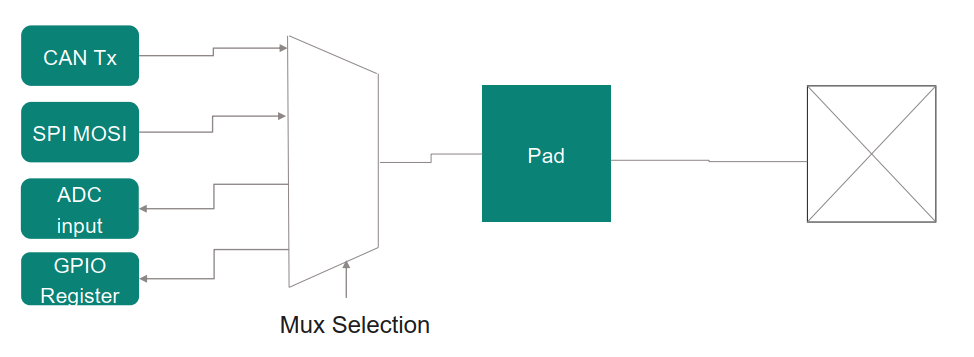
Figure 1: The Multiplexer allows one physical pad to serve many different masters, selected by software configuration.
Signal Integrity and Drive Modes
We then moved to the physics of the pad. We can't just connect a pin to anything; we have to configure its electrical characteristics to ensure Signal Integrity.
Input Configurations
When a pin is an input, we must avoid "floating" states where electrical noise could trigger false 0s or 1s.
- Pull-Up: We connect the pin to VDD through a resistor. Default state is High (1).
- Pull-Down: We connect the pin to Ground through a resistor. Default state is Low (0).
- High Impedance: Pure input with no resistors. Used when the external signal is strong and always driven.
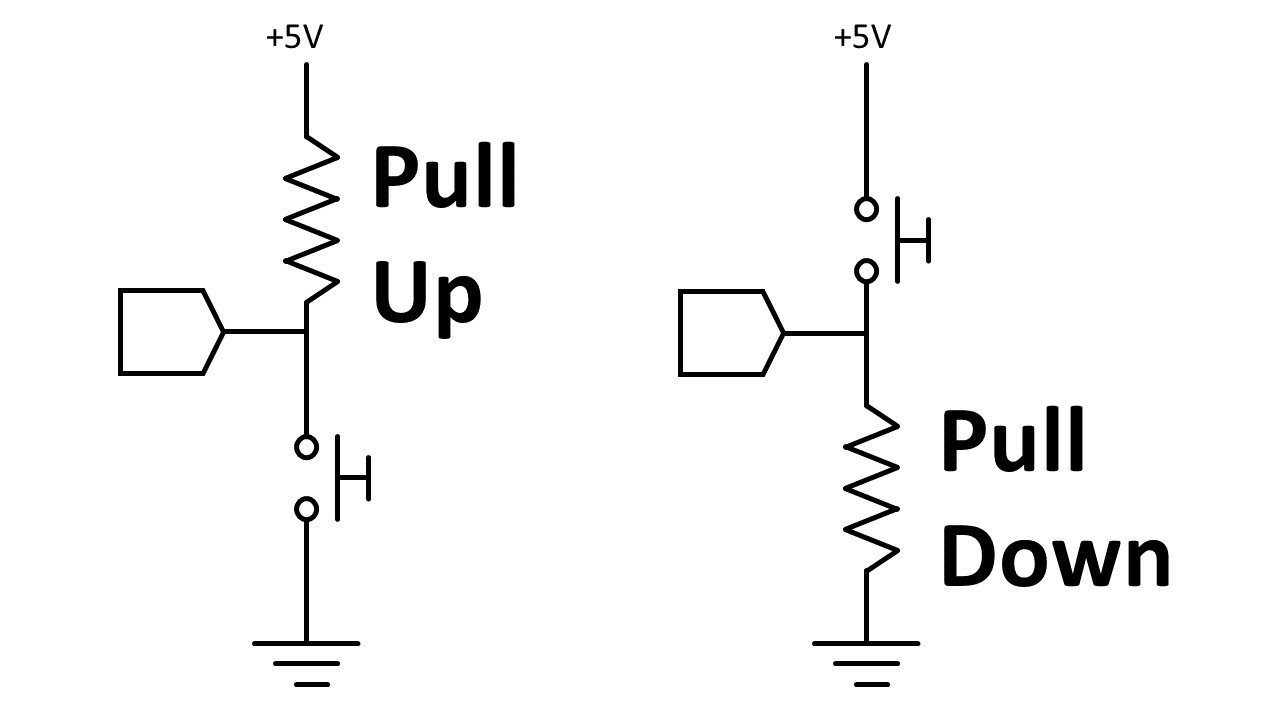
Figure 2: A block diagram showing the pull up and pull down architecture.
Output Configurations
When driving a signal out, we have two main topologies:
-
Open Drain:
- How it works: It uses a transistor to connect the pin to Ground (Low). To output a High, it simply turns off the transistor, leaving the line floating (High-Z).
- Use Case: Essential for buses like I2C or when multiple devices drive the same line (Wired-AND). You must use an external pull-up resistor to create the High state.
-
Push-Pull (Strong Drive):
- How it works: It uses a pair of transistors (one PNP, one NPN). One pulls up to VDD (Push), the other pulls down to Ground (Pull).
- Use Case: Standard digital signals (LEDs, SPI, UART). It actively drives both 0 and 1, so no external resistors are needed.
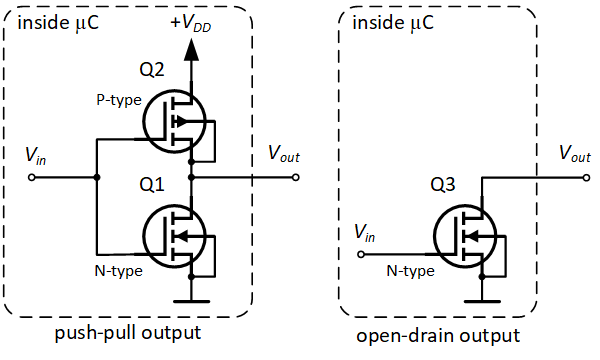
Figure 3: A block diagram showing the push pull and open drain architecture.
Drive Strength (Slew Rate)
We also touched on Pad Drive Strength. The trace on a PCB acts like a transmission line with capacitance. If we drive a signal too fast, it can ring or distort. By programming the drive strength (slew rate), we can match the impedance and ensure clean data transmission.
The "Port" Concept
Why do we have "Ports"? Imagine controlling 64 individual pins one by one. It would be unwieldy. Instead, pads are grouped into Ports (usually 8 pads per port). This allows us to read or write 8 pins simultaneously using a single byte-sized register.
- Naming Convention: We refer to them as
Px.y, wherexis the Port number andyis the Pad number (e.g., P2.4 is Port 2, Pad 4).
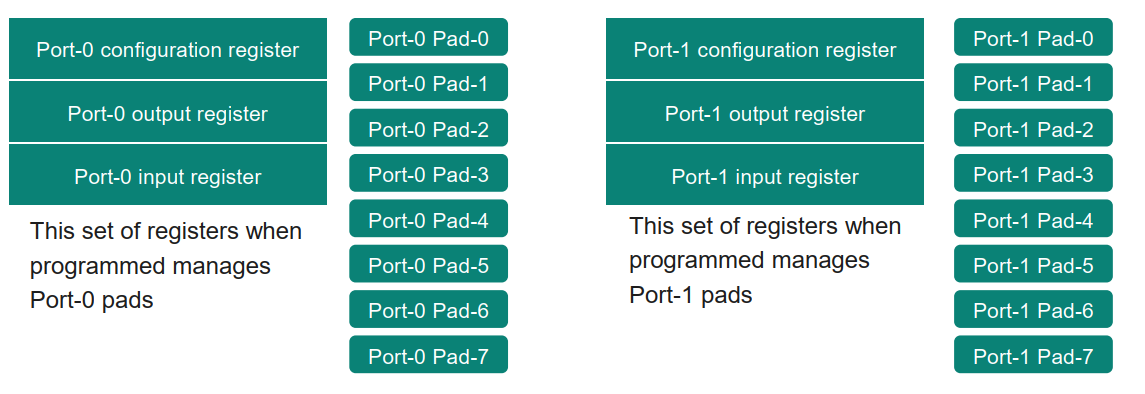
Figure 4: A block diagram showing the set of registers and pads of respective ports.
Inside the PSoC Port Structure
Prakash sir walked us through the block diagram of a PSoC Port. It is sophisticated because the Input and Output paths are independent.
- HSIOM (High-Speed I/O Matrix): This is the traffic cop. It routes signals from peripherals to the pads. Crucially, the Output HSIOM and Input HSIOM are separate. A pin can technically drive a signal out from a PWM while simultaneously routing the input value to a Timer capture input.
- The Output Path: The signal goes from the digital logic, through the HSIOM, to the drive circuitry (Open Drain or Push-Pull transistors).
- The Input Path: The signal comes from the pad, through a buffer, into the HSIOM, and then to the CPU or peripheral.
- Loopback Path: There is a line connecting the actual voltage at the pad back to the input register. This allows the CPU to read the state of the pin even when it is configured as an output, which is useful for detecting bus collisions or verifying the pin state.
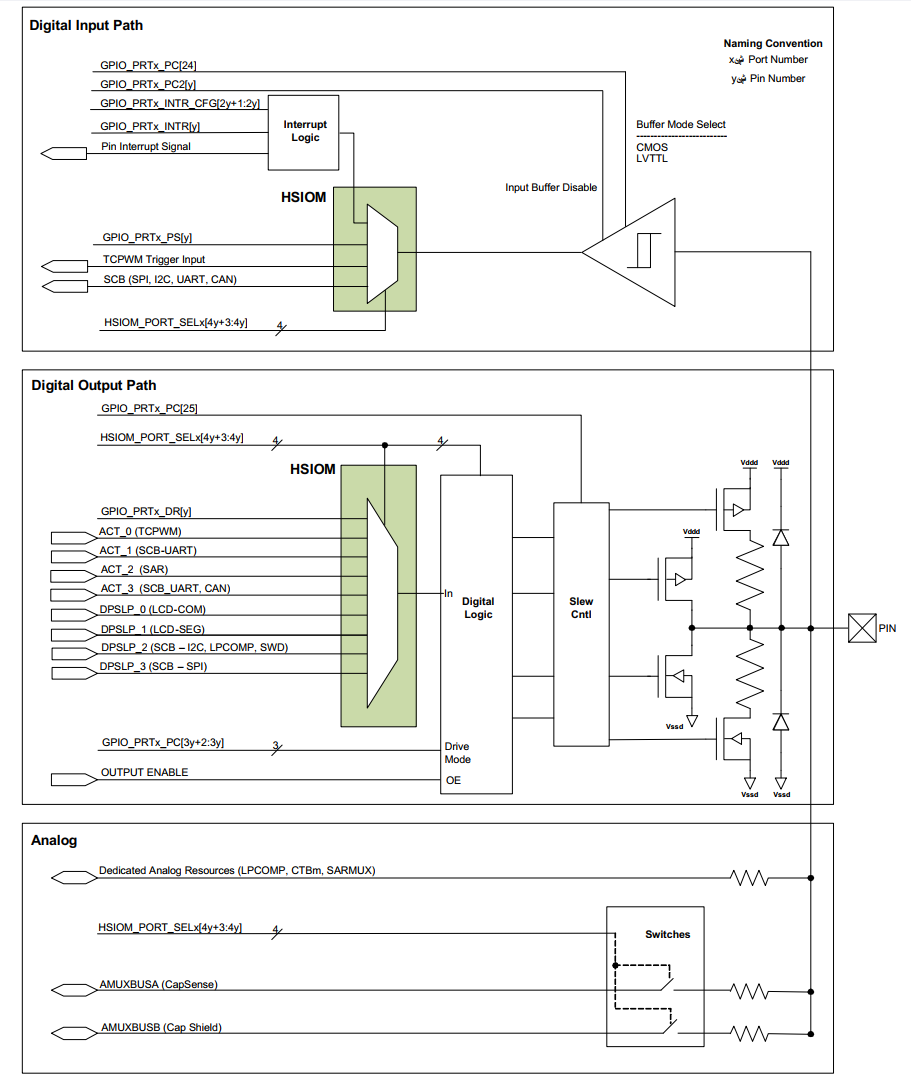
Figure 5: The internal structure of a PSoC GPIO. Notice the separate paths for input and output, and the central role of the HSIOM.
The Register Map: How We Control It
To manage these ports, we interact with specific Memory Mapped Registers. For the PSoC 4100S Plus, there are 10 registers per port.
GPIO_PRT_DR(Data Register): This is the output latch. Writing a '1' here requests the pin to go High.GPIO_PRT_PS(Port Status): This is the input value. Reading this tells us the actual logic level present on the pin.GPIO_PRT_PC(Port Configuration): This critical register sets the Drive Mode (Input, Push-Pull, Open Drain, etc.).GPIO_PRT_PC2: Used to disable the digital input buffer (important when using the pin for Analog signals to prevent noise).GPIO_PRT_INTR&INTR_CFG: Used to configure and check edge-triggered interrupts on the pins.GPIO_PRT_DR_SET,DR_CLR&DR_INV: Used for setting, clearing, and inverting the data register bits.HSIOM_PORT_SELx: This register selects which peripheral connects to the pad. It uses 4 bits per pad, allowing selection from 16 different options (Default is GPIO).
Configuring Drive Modes (GPIO_PRT_PC)
The PC register is where we define the pin's personality using 3 bits per pad (8 drive modes):
- Mode 0 (High Impedance Analog): Digital buffers off. Used for ADC/OpAmp inputs.
- Mode 1 (High Impedance Digital): High Impedance Digital. The standard input mode.
- Mode 2 (Resistive Pull-Up): Input with internal pull-up resistor.
- Mode 3 (Resistive Pull-Down): Input with internal pull-down resistor.
- Mode 4 (Open Drain, Drives Low): Standard Open Drain output.
- Mode 5 (Open Drain, Drives High): Standard Open Drain output.
- Mode 6 (Strong Drive): Standard Push-Pull output. The standard output mode.
- Mode 7 (Resistive Pull-Up and Pull-Down): Standard resistive pull-up and pull-down output.
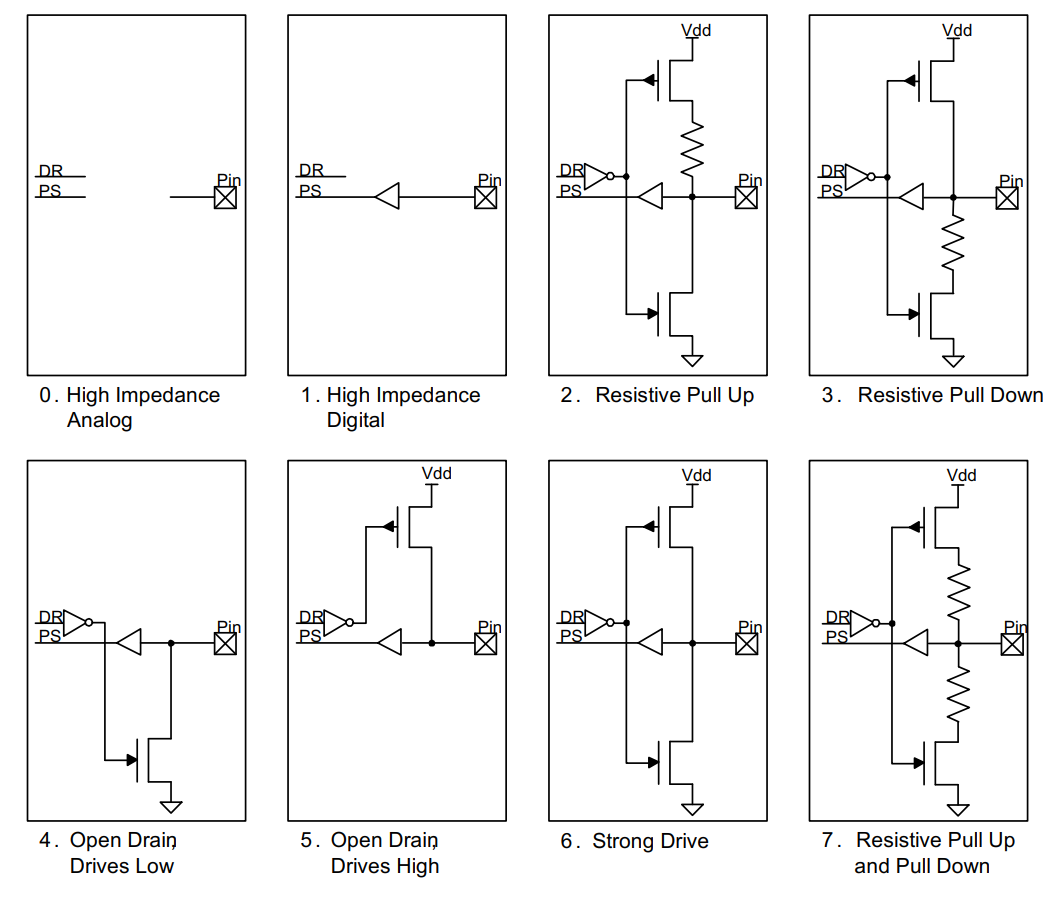
Figure 6: I/O Drive Mode Block Diagram.
We can also observe from the above block diagram that whenever DR is written to, the pin is either set to 1 or 0 depending on the mode chosen (the pin acts as output). It is recommended to use Mode 0 for analog, Mode 1 for digital input and Mode 6 for digital output (the seting of DR register to a specific value will be learnt in the hands-on).
A Practical Analysis: The User Button
We concluded the theory with a practical example: configuring the User Button on our board (P3.7).
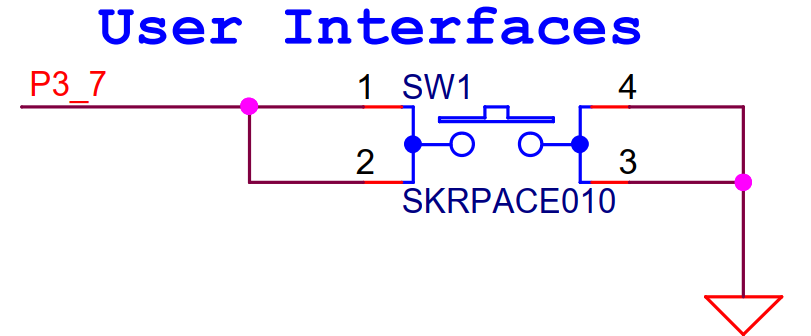
Figure 7: Schematic of User Interfaces (P3_7 Push Button).
- The Circuit: The schematic shows the button connected between the pin (P3.7) and Ground.
- The Problem: When the button is pressed, the pin sees Ground (0). When released, the pin is disconnected. If we use "High Impedance Input", the pin will float and read random noise (the idle state is 1, so we have to pull-up).
- The Solution: We must use Resistive Pull-Up (Mode 2). This ensures the pin sees VDD (1) when the button is released.
- The Trick: In PSoC, selecting Mode 2 connects the resistor, but we must also write a '1' to the Data Register (
DR) to activate the transistor that powers that resistor. Without this, the pull-up won't work!.
This detailed architectural review set the stage for our next step, the hands-on part of the day.
A Walkthrough of main.c: No Drivers Attached
To truly understand the hardware, we wrote the BareMetal V3 project. In this code, we stripped away all abstraction layers. There are no helper functions like Pin_Write() or Pin_SetDriveMode(). Instead, we are acting as the CPU, writing 32-bit values directly to specific memory addresses.
Here is the step-by-step breakdown of what we wrote:
1. Global Initialization
We started by defining the stack and heap sections using compiler attributes, ensuring the linker places them correctly in RAM. We also defined a flag, invertFLAG, to track our button state.
2. The Setup: main()
The first action inside main is enabling global interrupts at the CPU level. This clears the PRIMASK register, allowing the CPU to accept interrupt requests.
/* Enable Interrupts at CPU level */
enable_irq();
Configuring the LEDs (P2.2 and P5.5): We configured two pins to drive LEDs.
- Data Register (DR): We wrote a
1to the specific bit (Bit 2 for Port 2, Bit 5 for Port 5). On this board, the LEDs are active LOW, so writing1turns them OFF initially. - Port Configuration (PC): This is where we set the Drive Mode. We wrote the value
6into the 3-bit field corresponding to the pin. Mode 6 corresponds to Strong Drive (Push-Pull), which is required to drive current through the LED.
*((uint32_t *)0x40040200) = (1 << 2); // Set default output value of P2.2 to 1 (GPIO_PRT2_DR)
*((uint32_t *)0x40040208) = (6 << 6); // Set drive mode of P2.2 to Digital OP Push Pull (GPIO_PRT2_PC)

*((uint32_t *)0x40040500) = (1 << 5); // Set default output value of P5.5 to 1 (GPIO_PRT5_DR)
*((uint32_t *)0x40040508) = (6 << 15); // Set output value of P5.5 to to Digital OP Push Pull (GPIO_PRT5_PC)
Configuring the Button (P3.7): This was the tricky part involving the pull-up resistor.
- Port Configuration (PC): We used a Read-Modify-Write operation to set the drive mode bits for Pin 7 to
2. Mode 2 corresponds to Resistive Pull-Up. - Data Register (DR): Crucially, we wrote a
1to Bit 7 of the DR. As we learned in the theory session, in Pull-Up mode, writing1to the DR turns on the top transistor that connects the resistor to VDD. Without this, the pin would just float! - Interrupt Configuration (INTR_CFG): We configured the pin to generate an interrupt signal. We wrote the value
2into the configuration bits for Pin 7, which sets the trigger to Falling Edge. This means the interrupt fires when the button is pushed (transitioning from High to Low).
Note: All the register addresses/names and the mappings are clearly documented in the PSoC 4100S Plus Register TRM, kindly refer to the documentation for in-depth understading.
*((uint32_t *)0x40040308) = (*((uint32_t *)0x40040308)) | (2 << 21); // Set output value of P3.7 to to Digital Input resistive pull up (GPIO_PRT3_PC)
*((uint32_t *)0x40040300) = (1 << 7); // Set default output value of P3.7 to 1 (GPIO_PRT3_DR)
*((uint32_t *)0x4004030C) = (2 << 14); // Enable falling edge interrupt detection for P3.7 (GPIO_PRT3_INTR_CFG)
3. Configuring the NVIC
With the peripheral ready to shout "Interrupt!", we had to tell the CPU's interrupt controller (NVIC) to listen.
/* Set priorit level of the P3.7 user button (CM0P_IPRx) */
*((uint32_t *)0xE000E400) = (3 << 30);

/* Clearing and enabling the GPIO interrupt in NVIC for IRQ3 */
*((uint32_t *)0xE000E280) = 0xFFFFFFFF; // (CM0P_ICPR)
*((uint32_t *)0xE000E100) = (1 << 3);   // (CM0P_ISER)
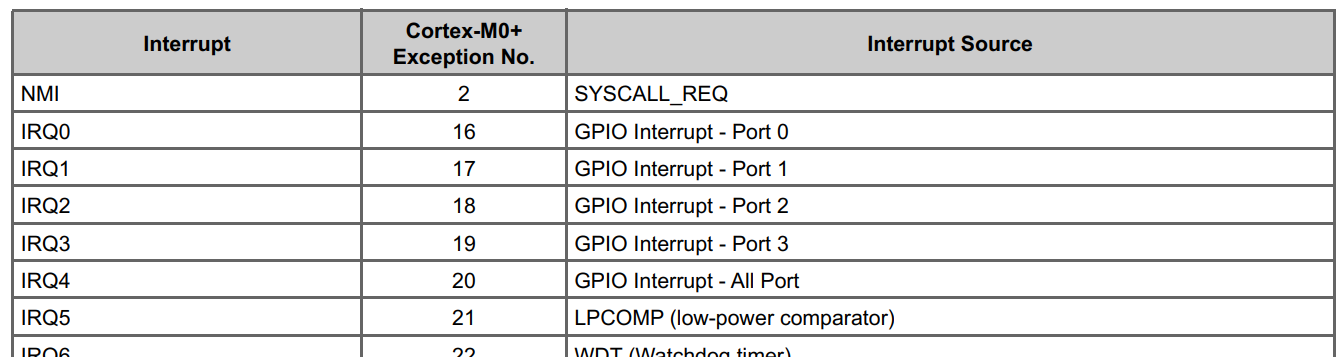
Figure 8: List of PSoC 4100S Interrupt Sources.
- Priority: We set the priority of IRQ #3 (which maps to Port 3, we can also observe from Figure 8. that IRQ #3 is for GPIO Interrupt - Port 3) to
3(lowest priority) using the Interrupt Priority Register (0xE000E400), we can observe from Figure 9. that IRQ #3's priority can be set in the bits 30-31, hence the priority number is shifted by 30. - Clearing Pending: Before enabling, it's good practice to clear any pending status bits (
0xE000E280) to prevent immediate false triggering. - Enabling: Finally, we wrote to the
ISERregister (0xE000E100) to unmask IRQ #3.
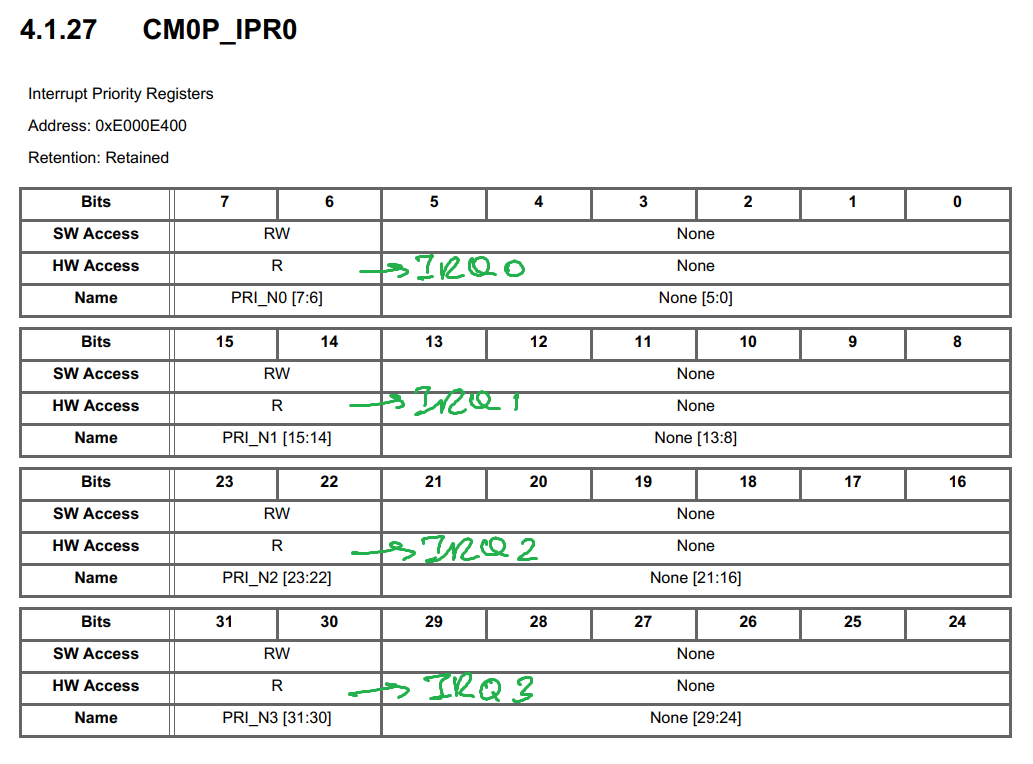
Figure 9: Interrupt Priority Register 0 (CM0P_IPR0 - 0xE000E400).
4. The Infinite Loop
The CPU then enters the for(;;) loop. Here, it performs a simple task: blinking LED P2.2.
for(;;)
{
    /* In an infinite loop toggle the LED 2.2, perform blinkey operation */
    *((uint32_t *)0x40040200) = (0 << 2); // Set output value of P2.2 to 0 (GPIO_PRT2_DR)
    Delay(60000);

    *((uint32_t *)0x40040200) = (1 << 2); // Set output value of P2.2 to 1 (GPIO_PRT2_DR)
    Delay(60000);
}
It toggles bit 2 of the GPIO_PRT2_DR register between 0 and 1, with a software delay in between. This blinking proves that the system is alive and running normal code while waiting for the user input.
5. The Interrupt Service Routine (ISR)
When the button is pressed, the CPU pauses the infinite loop and jumps here.
/* Interrupt handler for the button */
void ioss_interrupts_gpio_3_IRQHandler(void)
{
     uint32_t readVal;

     /* Clear the interrupt status at the GPIO peripheral to enable the next interrupt */
    *((uint32_t *)0x40040310) = (1 << 7); // Clear Interrupt for P3.7 (GPIO_PRT3_INTR)

    readVal = *((uint32_t *)0x40040304); // Read the P3.7 Input register and store into readVal (GPIO_PRT3_PS)
    if(((readVal >> 7) & 1) == 0u)
    {
        if(invertFLAG == 1u)
        {
            *((uint32_t *)0x40040500) = (1 << 5); // Set output value of P5.5 to 1 (GPIO_PRT5_DR)
            invertFLAG = 0u;
        }
        else if(invertFLAG == 0u)
        {
            *((uint32_t *)0x40040500) = (0 << 5); // Set output value of P5.5 to 0 (GPIO_PRT5_DR)
            invertFLAG = 1u;
        }
    }
}
- Clearing the Interrupt: The very first step is critical. We write a
1to bit 7 of the Port Interrupt Status Register (GPIO_PRT_INTR). This tells the hardware "I have seen this event." If we skip this, the hardware signal will remain high, and the CPU will re-enter the ISR immediately after exiting, causing the system to hang. There is no need to clear the NVIC pending bit, it is automatically cleared when we clear the peripheral interrupt. - Reading the Input: We read the Port Status Register (
GPIO_PRT_PS) to check the actual voltage level on Pin 7. - The Logic: If the bit is
0(Button Pressed), we toggle the state of the other LED (P5.5) using ourinvertFLAGlogic.
Writing code this way—using raw hex addresses—showed us exactly what happens inside the machine. There is no magic, there is only an address, a value, and a bus transaction.
#Infineon #EmbeddedSystems #Cohort3 #GPIO #PSoC4 #Registers #DigitalLogic #SignalIntegrity #HSIOM